
AI coding tools have changed the way software is built. You no longer need to write every line of code yourself. Today, you can describe what you want in plain English and have an AI tool help create the code, explain it, find mistakes, make changes, and sometimes even publish the finished app.
But there is a catch. Not every AI coding tool works the same way.
Some are best for people who already know how to code. Others are much easier for beginners. Some work inside a traditional code editor, while others let you build an entire website from your browser.
So, which one should you use?
What is an AI coding tool?
An AI coding tool is software that uses artificial intelligence to help you build software.
Think of it like having an AI assistant that understands programming.
You can ask it things like:
- “Build me a landing page for my newsletter.”
- “Add a dark mode button.”
- “Why isn’t my login form working?”
- “Create a page that shows my latest articles.”
The AI can then write or change the code for you.
More advanced tools can also look through an entire project, make changes across several files, run tests, find problems, and continue working through a task with less supervision.
That does not mean you can completely ignore what the AI is doing. AI can still make mistakes, create unnecessary code, or misunderstand what you asked for. Recent research has also found that relying too heavily on coding agents can make it harder for people to understand the code they are working with.
The best approach is to treat AI as a coding partner, not as someone who should be trusted blindly.
1. Cursor
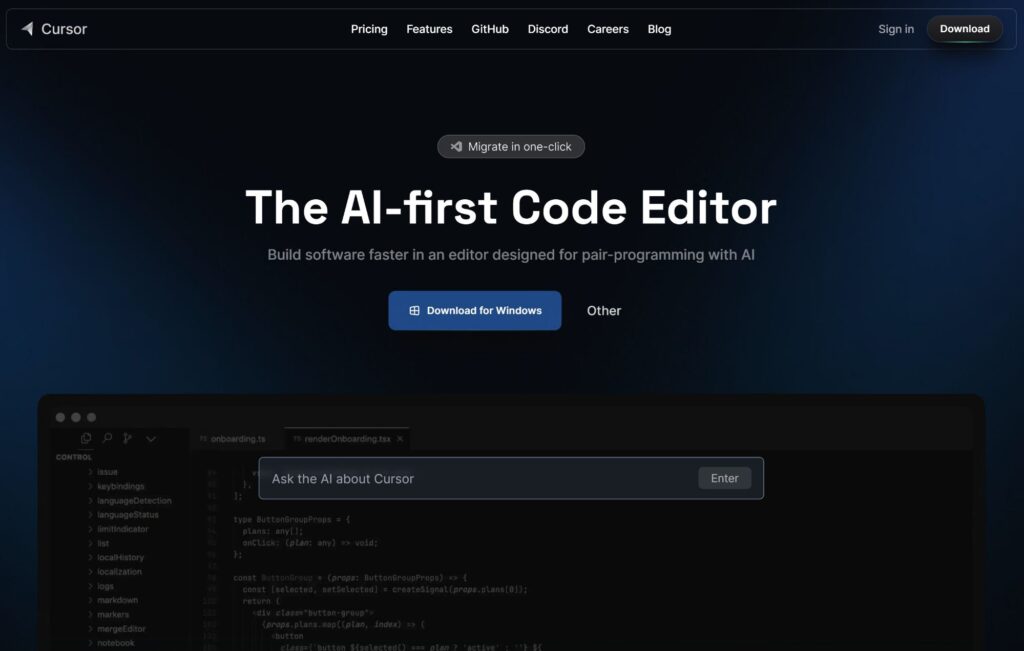
Cursor is one of the strongest choices if you want a full AI-powered coding environment.
It looks and feels like a modern code editor, but AI is built into the experience. Cursor can understand your project, answer questions about your code, plan changes, edit multiple files, find bugs, and help you build features.
The biggest advantage is that you do not have to keep copying pieces of your project into a chatbot. Cursor can work with the project directly.
For example, imagine you have a website with 30 files and you want to add a new login system.
Instead of explaining every file to an AI chatbot, you can ask Cursor to add the feature. It can inspect the project, work out where changes are needed, and make them.
Cursor also lets you choose between different AI models, including models from OpenAI, Anthropic, Google and other providers.
How to get started with Cursor
Download Cursor and open it. Create a new project or open an existing one. Then open the AI panel and describe what you want.
For your first project, keep it simple.
Try something like:
- “Create a simple personal website with a homepage, about page and contact page.”
Let Cursor create the first version. Then ask it to make small changes.
For example:
- “Make the navigation bar simpler.”
- “Add a blog section.”
- “Make the website work better on phones.”
This is a good way to learn because you can see what the AI changes instead of asking it to build everything at once.
Pros
- Cursor has excellent project understanding.
- It is powerful for working on existing websites and applications.
- It can make changes across multiple files.
- It supports several AI models.
- It is useful for both beginners and experienced developers.
Cons
- It can feel overwhelming if you have never coded before.
- You still need to review what it creates.
- It can sometimes make changes you did not expect.
- Some of its more advanced features are aimed at serious development work.
2. Claude Code
Claude Code takes a different approach.
Instead of mainly living inside a visual code editor, Claude Code works from your computer’s command line. In simple terms, it gives Claude a way to work directly with your coding projects.
You can tell it what you want and it can inspect your project, make changes across files, run tests, and work through larger coding tasks. Anthropic describes it as an agentic coding system rather than simple autocomplete.
That makes Claude Code particularly interesting for bigger projects.
For example, you could say:
- “Look through this project and find why users are getting an error when they sign in.”
- Claude Code can investigate the project, make changes, and check whether its solution works.
Anthropic’s research on Claude Code also found that users generally make the planning decisions while Claude handles much of the execution.
How to get started with Claude Code
You first need to install Claude Code on your computer and sign in. Anthropic currently provides installation instructions for macOS, Linux and Windows setups.
- Once installed, open your project and start Claude Code.
You can begin with something simple:
- “Explain this project to me like I am a beginner.”
That is actually a great first command because you can understand what you are working with before asking the AI to change anything.
Then try:
- “Add a contact page.”
- “Find any obvious errors.”
- “Explain what you changed.”
Pros
- Very good at handling larger coding tasks.
- Can work across many files.
- Can inspect and modify an existing project.
- Good for debugging and more complicated work.
- You can interact with it using plain language.
Cons
- The command-line interface can be intimidating for beginners.
- It is easier to misuse if you do not understand what the commands are doing.
- You still need to review its work.
- It can be more than you need for a simple website.
3. OpenAI Codex
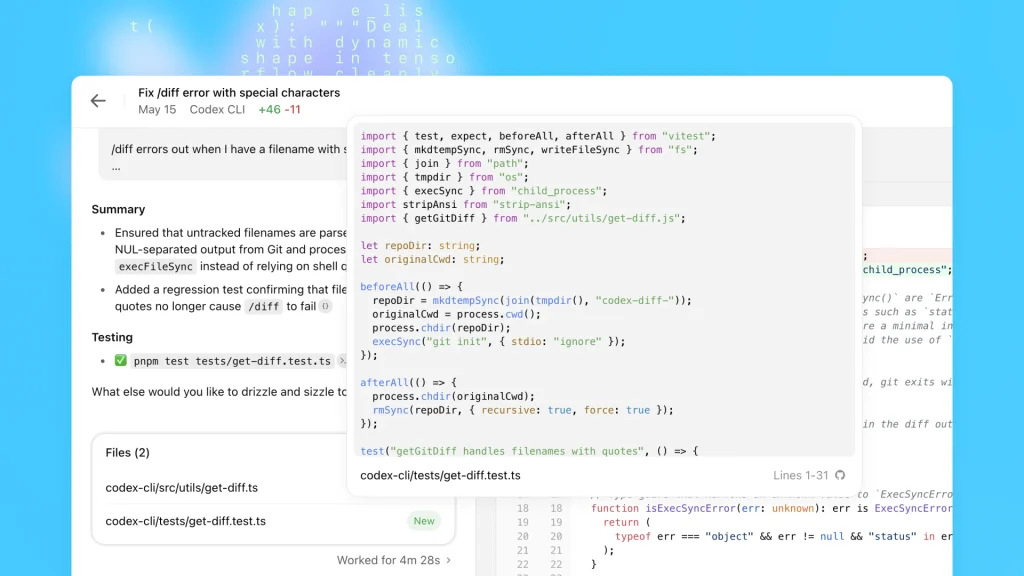
The important thing to understand is that modern Codex is much more than a tool that simply writes snippets of code. It can take on tasks, work through a project, make changes, run checks and help complete software work from beginning to end.
You can use Codex through ChatGPT, an IDE extension, the terminal, and other supported environments.
That makes it particularly useful if you already use ChatGPT and want to move from asking questions about code to actually having an AI work on the project.
For example, instead of asking:
- “How do I add a search bar?”
- You can give Codex your project and ask it to add the search bar.
- It can then work through the task and show you what it changed.
Codex has also moved toward handling multiple coding tasks at the same time, which makes it useful for larger projects.
How to get started with Codex
The easiest starting point for many people is through ChatGPT if Codex is available on their plan.
You can also use the Codex app, IDE extension or CLI depending on how you prefer to work.
Start with an existing small project.
Tell Codex:
- “First understand this project. Do not change anything yet. Explain how it works.”
- Once you understand its explanation, give it a small task.
For example:
- “Add a button that takes users from the homepage to the About page. Explain the changes before making them.”
That gives you much more control.
Pros
- Can handle complete coding tasks rather than just individual lines.
- Works across different coding environments.
- Good for larger and more complicated projects.
- Can run tasks and check its work.
- Useful if you already use ChatGPT.
Cons
- Its more advanced features can be excessive for very simple projects.
- AI-generated changes still need human review.
- It can make large changes if you give it broad instructions.
- Beginners may need some time to understand how agent-style coding works.
4. Replit
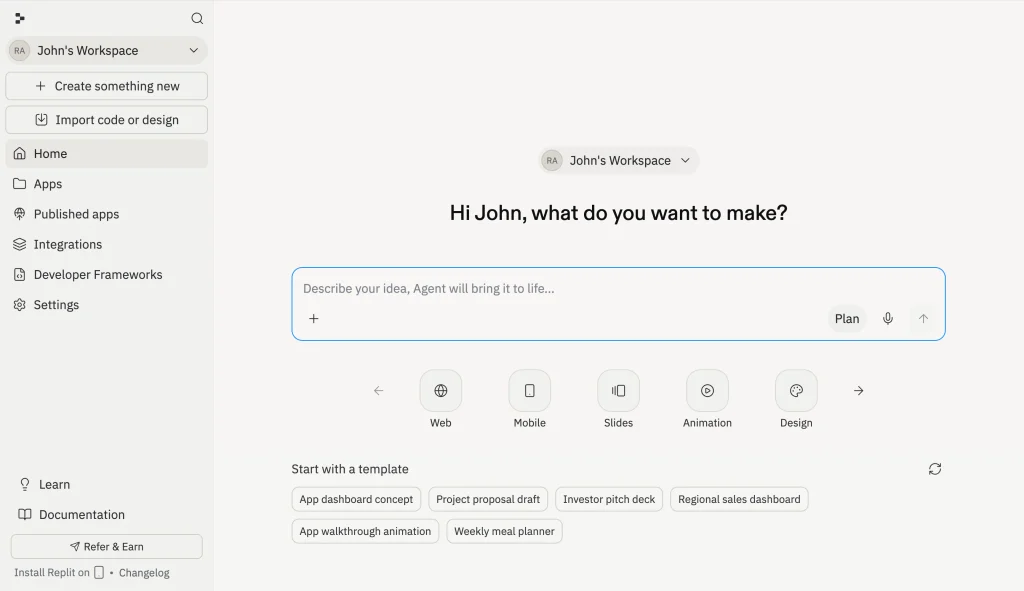
Replit is probably one of the easiest options for beginners who simply want to build something without setting up a complicated development environment.
Replit Agent lets you describe what you want to build through chat. The AI can then create the application, test it, fix problems and help publish it. Replit specifically positions Agent as something people can use even without coding experience.
This makes Replit especially interesting for people who have an idea but do not know where to start.
Imagine you want to build a simple expense tracker.
You could tell Replit:
- “Build an expense tracker where I can add expenses, choose a category and see how much I have spent.”
Replit Agent can turn that description into a working project.
You can then continue chatting with it:
- “Make the dashboard cleaner.”
- “Add a monthly summary.”
- “Add a way to delete expenses.”
Replit Agent 4 can also build web apps, mobile apps, dashboards and AI-powered tools, while allowing you to work on designs and projects from the same environment.
How to get started with Replit
- Create a Replit account and start a new project.
- Choose the Agent option and describe what you want to build.
- Do not try to explain an entire startup in your first prompt.
Start with a small idea.
For example:
- “Build a simple portfolio website for a digital creator. Include Home, About, Projects and Contact pages.”
Once the first version works, ask the Agent to improve it.
Pros
- Very beginner-friendly.
- Works in the browser.
- You do not need to set up a development environment before starting.
- AI can build, test and publish projects.
- Good for quickly turning ideas into prototypes.
Cons
- You have less control than with a traditional development environment.
- Complex projects can still require technical knowledge.
- AI-generated projects can contain mistakes or unnecessary code.
- Costs can increase depending on how much you use the AI features.
5. v0 by Vercel
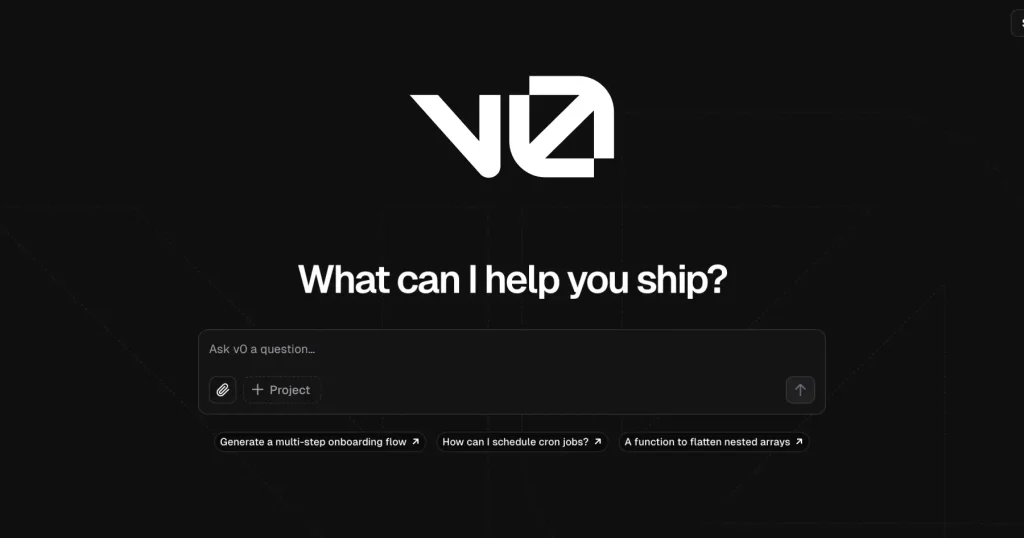
If your main goal is building websites and web applications, v0 is one of the tools worth trying.
v0 by Vercel lets you describe what you want and generates the interface and code for it. It can build everything from landing pages and dashboards to ecommerce websites and full-stack applications.
The experience is very visual.
You might say:
- “Create a modern landing page for an AI newsletter.”
v0 can generate the page.
Then you can continue:
- “Make the hero section smaller.”
- “Add a pricing section.”
- “Use a dark theme.”
- “Add a newsletter signup form.”
You can see the result as you work.
v0 has also expanded beyond simple page generation. It can plan tasks, connect databases and APIs, and deploy projects through Vercel. That makes it particularly useful for someone who cares about the design and appearance of a website.
How to get started with v0
- Go to v0 and start a new project.
- Describe the website or application you want.
- Be specific about the purpose of the page.
For example:
- “Create a clean technology news homepage with a large featured article, latest articles underneath, category navigation and a newsletter signup section.”
Then improve the result through smaller requests. You can also start with one of its templates instead of starting from an empty project.
Pros
- Excellent for creating web interfaces quickly.
- Very useful for landing pages and dashboards.
- Visual editing makes it easier to understand what you are building.
- Can connect to databases and other services.
- Can deploy directly to Vercel.
Cons
- It is more focused on web development than general programming.
- Complex applications can still require coding knowledge.
- The AI-generated code should still be checked.
- Costs can increase with heavier usage.
6. GitHub Copilot
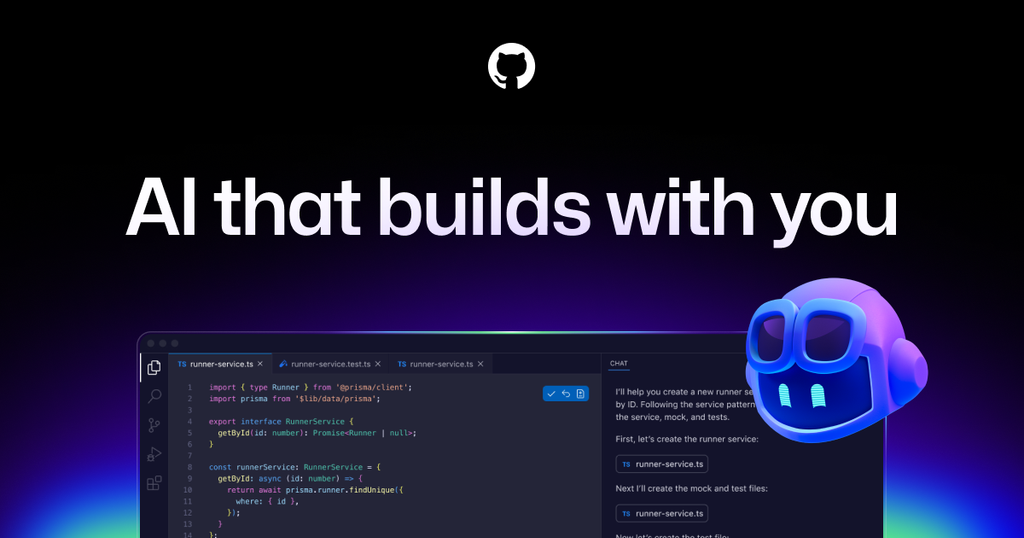
GitHub Copilot is one of the most established AI coding assistants.
Instead of giving you a completely separate place to build software, Copilot sits inside your coding environment and helps while you work.
It can explain code, suggest what to write next, make edits and use agent mode to work across multiple files. This makes Copilot a good option if you already use GitHub or a supported code editor.
Imagine you are writing a function and get stuck. Instead of leaving your editor and opening a chatbot, you can ask Copilot right there.
You can also give it a larger request such as:
- “Add error handling to this feature and update the related files.”
Its agent mode can analyze the project, propose changes, run tests and validate the result.
How to get started with GitHub Copilot
- Create or sign into a GitHub account.
- Install Copilot in a supported editor, such as VS Code, and open your project.
Start with basic requests. Ask it to explain a piece of code you do not understand.
Then ask it to make a small change. This approach is better than immediately asking it to build an entire application because you can gradually learn how the code works.
GitHub currently offers a Free plan with limited chat and agent usage, while paid plans provide additional AI credits and features.
Pros
- Easy to use inside your existing coding environment.
- Good for code suggestions and explanations.
- Agent mode can handle larger tasks.
- Strong integration with GitHub.
- Useful for both beginners and experienced developers.
Cons
- You need a coding environment to get the most out of it.
- Some advanced features use AI credits.
- It can still generate incorrect code.
- It may feel less beginner-friendly than Replit.
Which AI coding tool should you choose?
There is no single winner for everyone. If you are completely new to coding and simply want to turn an idea into an application, start with Replit.
- If you want to create beautiful websites and interfaces quickly, try v0.
- If you want a powerful AI coding editor, Cursor is an excellent starting point.
- If you want an AI agent that can take on large coding tasks from the terminal, Claude Code is worth learning.
- If you want an AI agent that works across ChatGPT, your editor and terminal, Codex is a strong choice.
- If you already live inside GitHub and a coding editor, GitHub Copilot makes a lot of sense.
Cursor vs Claude Code vs Codex vs Replit vs v0 vs Copilot
Think about them like this:
Cursor is your AI-powered coding workspace.
Claude Code is your AI coding worker in the terminal.
Codex is your AI software teammate that can work across several environments.
Replit is your AI-powered online workshop for building and publishing apps.
v0 is your AI website and web app builder with a strong focus on design.
GitHub Copilot is your AI assistant inside your existing coding environment.
The differences are becoming smaller, though. These tools are increasingly adding features that overlap with each other, so choosing based purely on a feature checklist can be misleading. The better question is where you prefer to work and how much control you want to give the AI.
Do you need to know how to code?
Not necessarily.
That is one of the biggest changes happening in software development.
Tools such as Replit Agent and Claude Code are explicitly designed to let people describe what they want in natural language.
But there is an important difference between being able to build something and being able to maintain it.
AI can help you create an application without much coding knowledge. If something breaks later, however, you will have a much easier time fixing it if you understand the basics.
You do not need to become an expert programmer before using these tools.
Learn as you build.
Understand what the AI changes.
Ask it to explain unfamiliar code.
Make small changes yourself.
That combination is much more useful than simply copying prompts and accepting everything the AI produces.
How beginners should use AI coding tools
If you are completely new, do not start by saying:
- “Build me the next Facebook.”
Start with something you can understand.
- Build a personal website.
- Build a simple calculator.
- Build a small blog.
- Build a habit tracker.
- Build a landing page.
Then improve it one feature at a time.
A good workflow is simple:
- First, explain what you want.
- Second, let the AI create a small version.
- Third, test it yourself.
- Fourth, ask the AI to explain anything you do not understand.
- Fifth, make another small improvement.
This helps you learn while still getting the speed benefits of AI.
The biggest mistake to avoid
The biggest mistake is assuming that because an AI tool can write code, everything it produces is automatically good.
It is not.
AI can misunderstand instructions. It can introduce bugs. It can create code that works today but becomes difficult to maintain later. Research comparing AI-generated applications has also found meaningful differences in code quality between popular AI building tools.
So always test what the AI creates.
If the project matters, keep backups and use version control so you can go back when something goes wrong.
Most importantly, do not be afraid to ask the AI:
- “Explain exactly what you changed and why.”
That one habit can make AI coding much safer and much more educational.
Final thoughts
AI coding tools are no longer just autocomplete tools.
They are becoming full software-building assistants that can understand projects, write and change code, test applications and help take an idea toward a finished product.
For beginners, Replit and v0 are particularly approachable. For people who want a powerful coding environment, Cursor is a strong choice. For larger coding tasks, Claude Code and Codex are worth considering.
And if you already work with GitHub, Copilot is a natural option. You also do not have to pick only one.
A creator might use v0 to design a website, Cursor to work on the project, Codex or Claude Code for larger tasks, and GitHub Copilot for everyday coding help.
The real advantage is not simply having AI write code for you. It is learning how to tell these tools what you want, checking their work, and using them to turn ideas into real software much faster.