Imagine you need a clean landing page for your new product. Or maybe a full pitch deck for tomorrow’s meeting. In the past, you would open Figma or Canva, spend hours clicking and dragging, or wait for a designer. Now, you just type what you want in plain English, and an AI builds it live on your screen. That is exactly what Claude Design does.
Anthropic Labs launched Claude Design on April 17, 2026. It is a brand-new tool that lets anyone create polished designs, interactive prototypes, slide decks, one-pagers, and marketing assets by chatting with Claude AI.
It runs on Claude Opus 4.7, Anthropic’s most powerful vision model right now. The best part? You do not need design skills or coding knowledge. You just talk to it like a smart design partner.
This guide explains everything in simple words. You will learn what Claude Design really is, who can use it, how to start in minutes, pro tips that actually work, real examples, and even its limits. By the end, you will feel ready to jump in and try it yourself.
What Exactly is Claude Design?
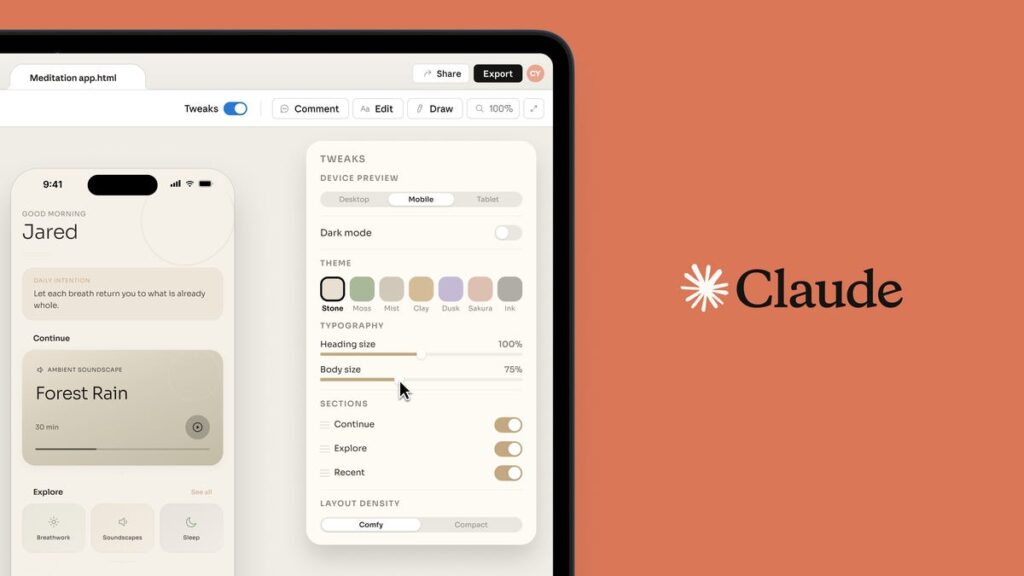
Claude Design is a conversational visual creation tool from Anthropic. Think of it as a smart canvas that listens to your words and turns them into real designs you can see, click, and change right away.
You open claude.ai/design, type a description in the chat box on the left, and a working design appears on the big canvas on the right. Then you keep chatting to fix or improve it. It feels like working with a super-fast designer who never gets tired.
Unlike regular AI image generators that only spit out flat pictures, Claude Design creates interactive stuff. Buttons work, forms respond, slides animate, and prototypes feel real. It also remembers your brand colors, fonts, and components automatically if your team set up a design system.
It lives separately from the normal Claude chat. You go to its own page, and everything stays in projects so you can come back later.
Why People Love Claude Design Right Now
Design work takes time. Founders, marketers, product managers, and even experienced designers all say the same thing: Claude Design speeds up the early messy stage. You can explore five different ideas in the time it used to take to make one.
It also keeps everything on-brand. No more generic AI output that looks nothing like your company. Plus, you can hand the finished design straight to developers with one click.
Who Can Use Claude Design?
Claude Design is available right now in research preview. You need a paid Claude plan:
- Claude Pro
- Claude Max
- Team plan
- Enterprise plan
Free users cannot access it yet. Enterprise teams must ask their admin to turn it on first. It uses your normal subscription limits, but you can buy extra usage if you run out.
How to Get Started with Claude Design (Step-by-Step)
Getting started is easy. Here is exactly what to do:
- Go to the right place
Open your browser and visit claude.ai/design. Sign in with your Claude account. - Create a new project
Click the button to start a fresh project. It automatically pulls in your team’s design system (colors, buttons, fonts) so everything looks professional from the first try. - Add helpful context (this step makes it way better)
Upload screenshots, wireframes, competitor pages, PDF slides, Excel files, or even link your codebase. The more you give it, the closer the first result matches what you want. - Write your first prompt
Be clear and specific. Good example:
“Create a mobile app onboarding flow with 4 screens for our fitness tracking app. Use our brand colors blue and green. First screen: welcome with big headline and get started button. Show progress dots at the top.” Claude will build the full thing on the canvas in seconds. - Review and tweak
Look at the canvas. Now improve it two ways:
- Type in the chat for big changes (“Make the layout darker and add a chart”).
- Click any part of the design and leave an inline comment (“Bigger padding on this button” or “Change this to a dropdown”).
- Keep going until it feels right
Ask for variations, fix small details, or add animations. You can save different versions easily. - Export or share
When you finish, click Export. Choose PDF, PowerPoint, HTML, send to Canva, or hand off straight to Claude Code for developers. You can also share a link with your team for comments.
That is it. Most people make their first useful design in under 10 minutes.
Key Features That Make Claude Design Special
- Chat + Live Canvas: See changes instantly as you talk.
- Smart Design System: It learns your brand and applies it everywhere.
- Inline Comments & Sliders: Point and fix things without typing long explanations.
- Imports: Upload images, documents, or code so it copies real styles.
- Collaboration: Share projects with view or edit access inside your company.
- Exports & Handoffs: One-click to Canva, code, or files.
- Interactive Prototypes: Real buttons, forms, and even 3D or video elements work.
Pro Tips for Amazing Results
Want better designs faster? Try these simple tricks:
- Start simple, then add details. Do not ask for everything at once.
- Be specific: Say “use 16px spacing” or “make it mobile-first” instead of “looks good.”
- Use component names from your brand if you know them.
- Ask Claude for feedback: “Check this design for accessibility and suggest improvements.”
- Request 2-3 options when you feel stuck.
- For big changes, use chat. For tiny fixes, use inline comments.
- Always mention the audience and goal in your prompt.
These small habits turn okay results into great ones.
Real-World Use Cases People Are Using Today
Marketers build beautiful landing pages in minutes.
Product managers create interactive prototypes to test ideas before coding.
Founders make pitch decks that look pro and export to PowerPoint.
Designers explore many directions quickly and hand off clean files.
Teams redesign internal tools or approval forms without waiting for the design department.
One popular example: “Turn this rough sketch into a full dashboard with charts.” Or “Make a social media carousel for our new feature.”
Claude Design vs Figma, Canva, or Other AI Tools
Claude Design does not replace Figma for huge team projects or pixel-perfect final designs. It shines in the fast ideation and prototyping phase. Many people use it together with Figma: quick ideas in Claude Design, then polish in Figma if needed.
Compared to Canva, it feels more intelligent because it understands context and your brand deeply. Other AI image tools only give pictures. Claude Design gives working, editable interfaces.
Things to Keep in Mind (Honest Limitations)
It is still in research preview, so small bugs can happen. Sometimes inline comments disappear (just paste them into chat as a workaround). Very large codebases may slow things down. And yes, it uses your monthly credits, so heavy users may need extra usage.
But Anthropic is updating it fast, and new features are coming.
Ready to Try Claude Design?
Claude Design changes how fast we can turn ideas into visuals. Whether you are a solo founder, busy marketer, or full-time designer, it gives you superpowers.
Head over to claude.ai/design today (make sure you have a Pro plan or higher), create your first project, and see what happens when you type your next idea. You might be surprised how good the first version looks.
Have you tried Claude Design yet? Drop your favorite prompt or project in the comments below. I would love to hear what you built!
Source: Anthropic.